Roadmap Epic/Feature Timeline View (Legacy)
Overview
The Roadmap Epic/Feature Timeline View is a legacy view and will not receive future feature enhancements. We recommend using the Roadmap View to take advantage of newer capabilities and ongoing improvements.
Why switch to Roadmap View?
- Expand: View child Work Items directly under their parent.
- Filter Mode: Apply filters to both parent and child items for greater flexibility.
- Teams Iterations: Display a Team’s Iterations on the timeline when using a Team Roadmap.
- Hierarchy Limitations: Only Epics and Features are supported in the legacy view. Higher-level or lower-level Work Items cannot be displayed.
Show or Hide the Roadmap Epic/Feature Timeline
To toggle the Roadmap Epic/Feature Timeline (disabled by default for all new Roadmaps):
- Open the Options menu (gear icon in the top-right corner).
- Go to the View Controls tab.
- In the Tabs section, enable or disable the Roadmap Epic/Feature Timeline Tab.
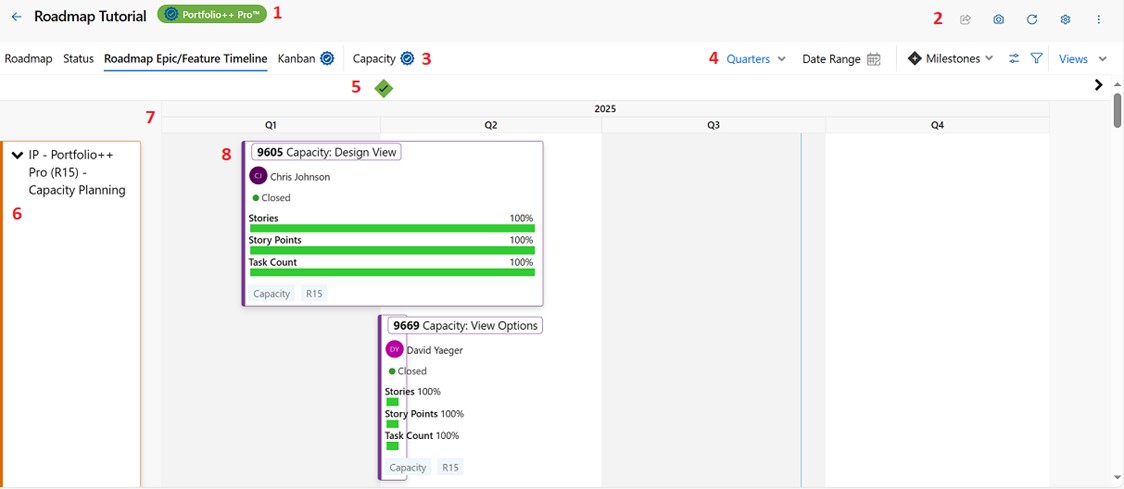
1) Roadmap Header
- Displays the name of the Roadmap
- A lock icon is displayed if the Roadmap is locked
2) Roadmap Actions
See Common Controls for more information.
3) Roadmap Tabs
- Each tab represents a different view
- Visibility can be updated via the View Controls in the Options menu.
4) Roadmap Toolbar
See Common Controls for more information.
5) Milestones (Pro Feature)
- Displays configured milestones
- See Milestones for more information.
6) Roadmap Selection
- Displays Project (Green), Team (Blue), or Query (Purple) depending on setup
- Click the name to navigate to Azure DevOps
- Use the arrow to expand or collapse
7) Roadmap Timeline
- Displays the timeline view
- Use the Toolbar to adjust zoom (Quarter, Month, Week, Day)
8) Features
Represents Features of selected Work Items in Roadmap Settings
Options and Behavior:
- Fields (configurable in Roadmap Options):
- ID
- State
- Tags
- Assigned To
- Metrics (count or percentage):
- User Story / PBI Count
- Story Points / Effort
- Task Count
- Green Progress Bars: Show current progress based on configuration
- Action: Clicking a progress bar opens related Work Items (Pro Feature)
- Dotted Line: Indicates the Work Item extends beyond the selected date range