Microsoft Azure Marketplace
Follow these steps to add Portfolio++ Pro to your Microsoft Azure subscription.
Step 1 - Open the Azure Marketplace Listing
Go to the Microsoft Marketplace page for Portfolio++.
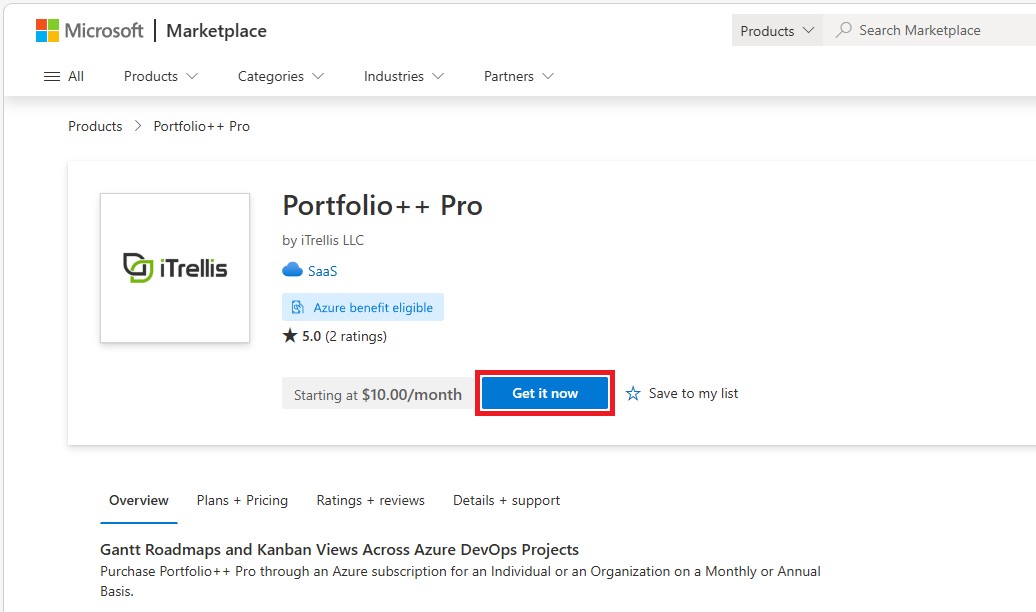
Step 2 - Get it now
Click Get it now.
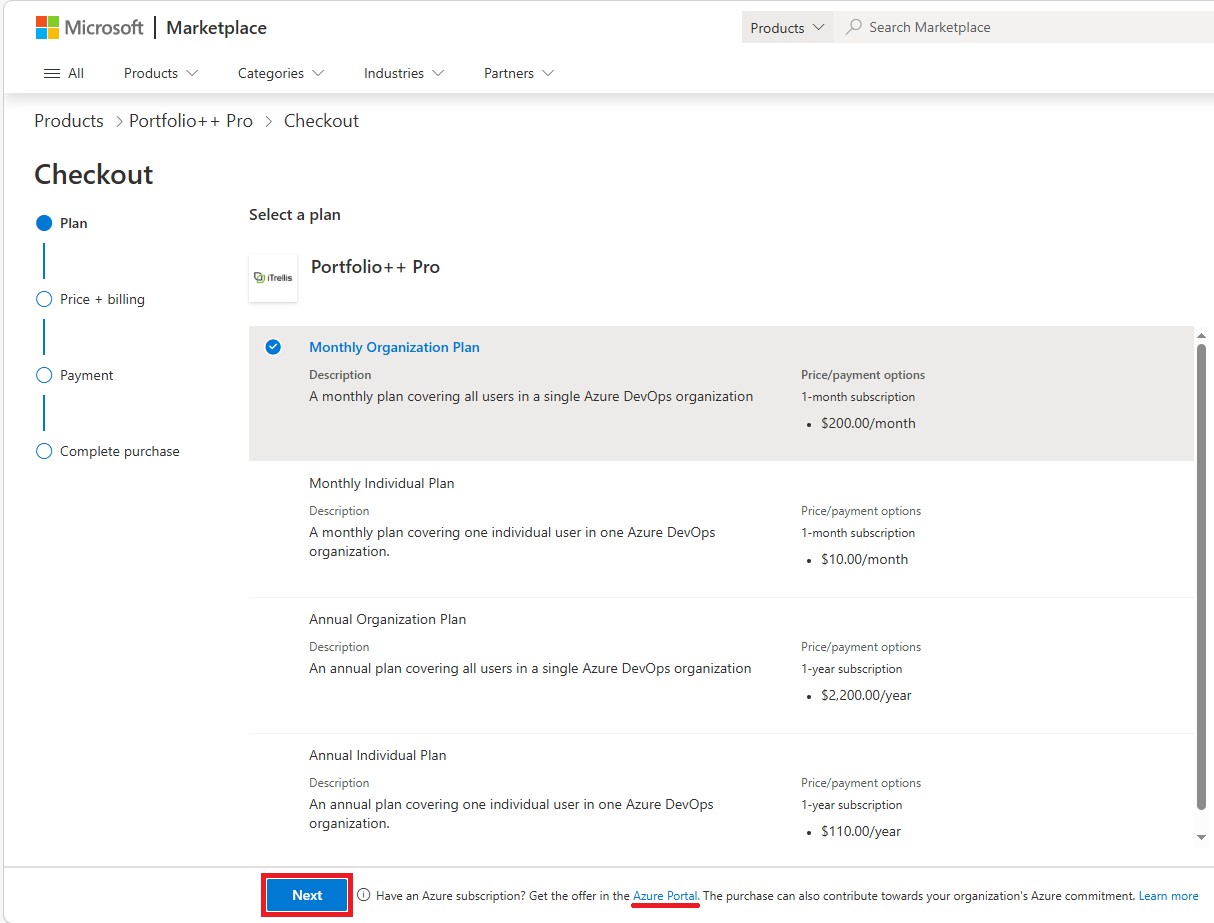
Step 3 - Select a Plan
Choose the plan that works for you.
Billing options
-
Credit card (standard billing)
Select Next to continue with direct billing. -
Azure subscription
Select Azure Portal to use an existing Azure subscription.
An Azure Portal purchase contributes toward your organization’s Azure commitment.
Step 4 - Complete Checkout
Complete your purchase using your selected billing method.
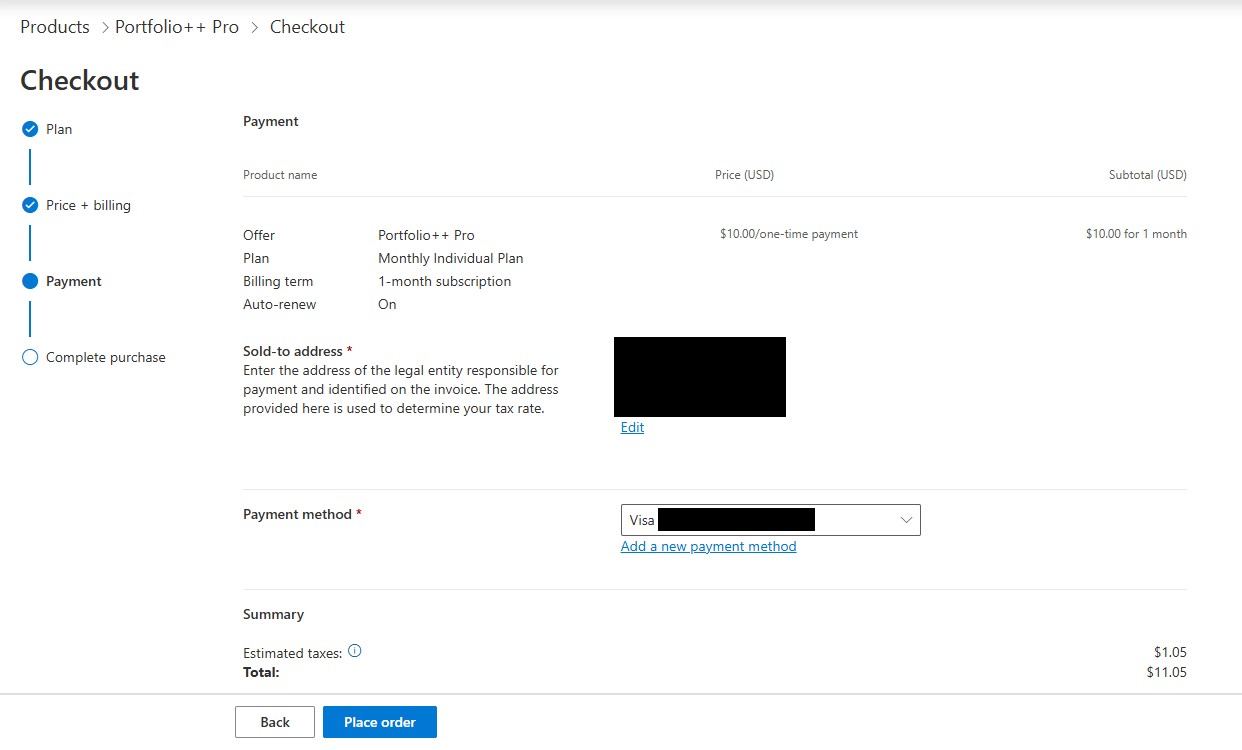
Credit card (standard billing)
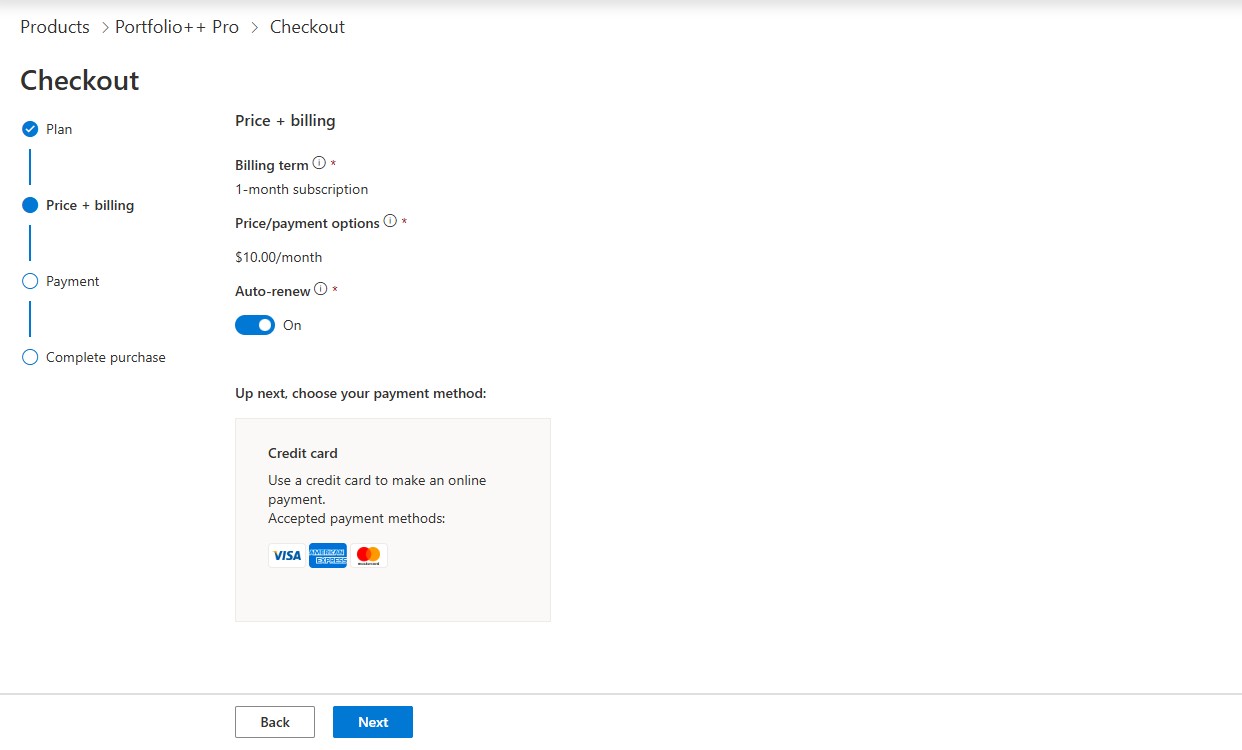
Price + billing
Verify the selected plan and billing term.
Auto-renew is on by default. Turn it off if needed.
Select Next to continue.
Payment
Select or enter a payment method.
Select Place order to complete the purchase. Processing may take a few moments.
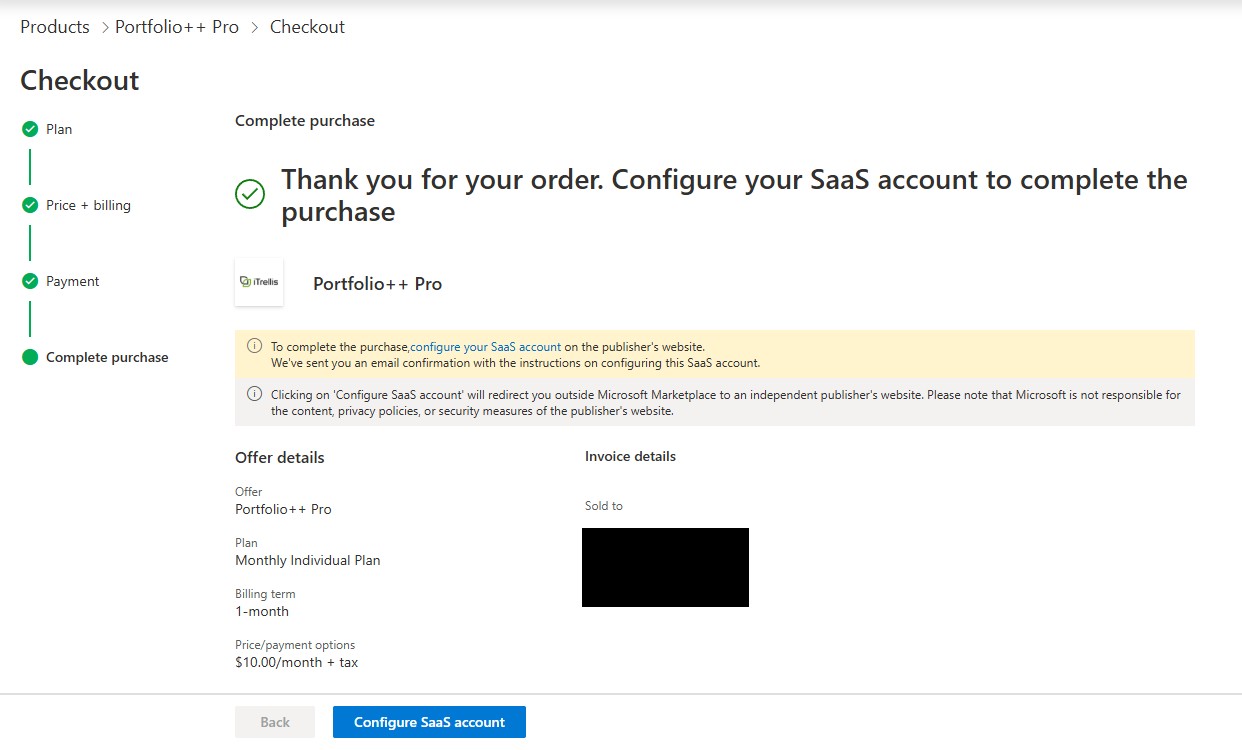
Complete purchase
Wait while your payment is processed and the page loads.
Once complete, select Configure SaaS account.
Continue to Step 5.
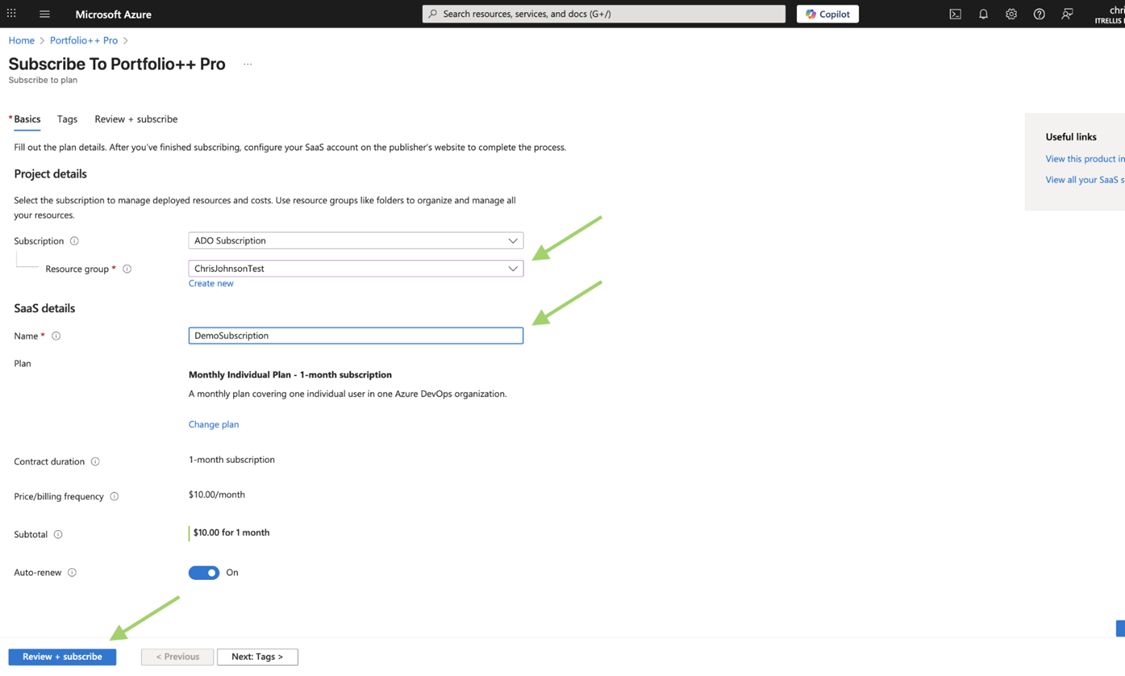
Azure subscription
Assign Resource Group
Assign the subscription to an Azure Resource Group (for example, ChrisJohnsonTest) and give the subscription a name (for example, DemoSubscription).
Then click Review + Subscribe.
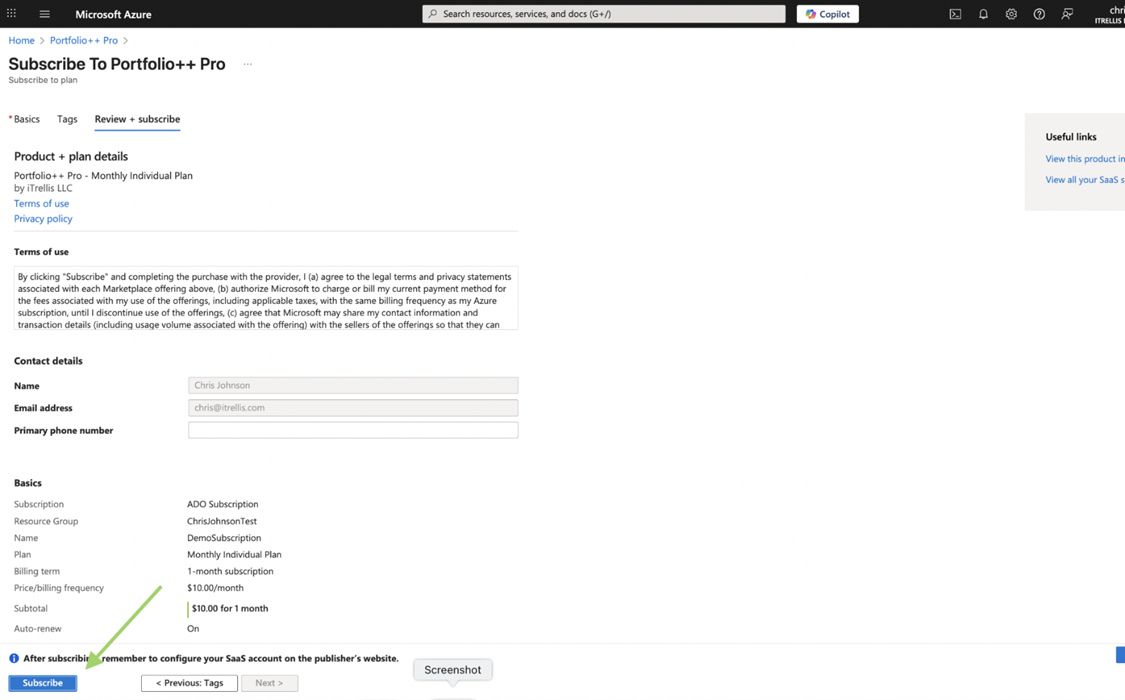
Review Subscription
In the Review + Subscribe tab, verify the details and click Subscribe.
Configure Account
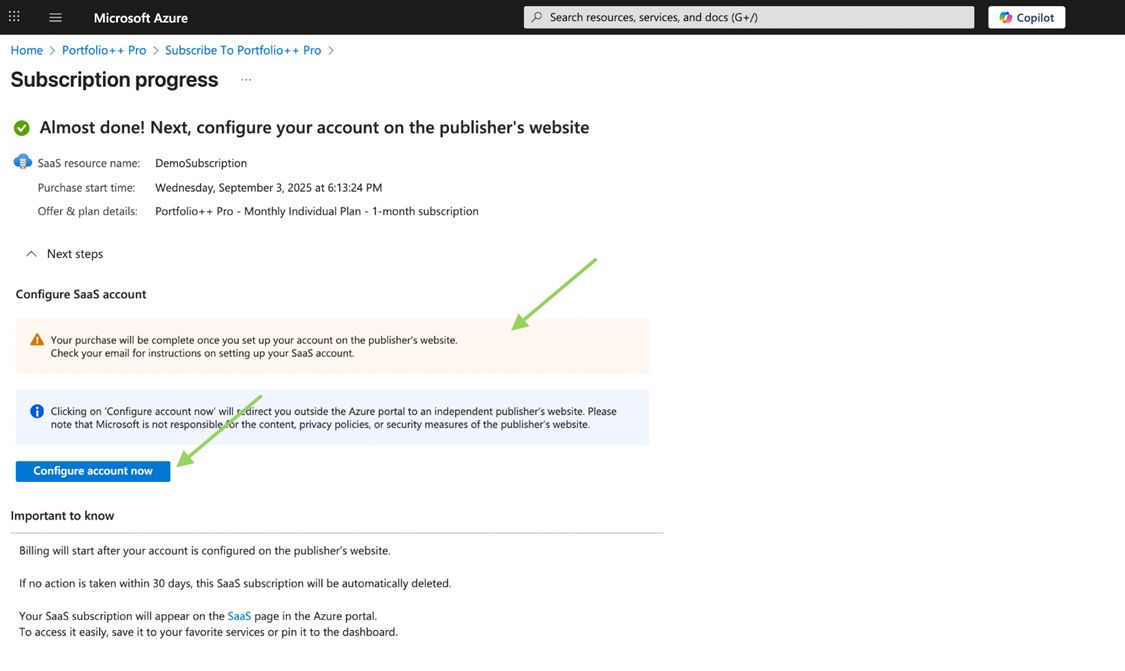
Wait for the orange notification box to appear, then click Configure Account Now.
Step 5 - Activate Subscription
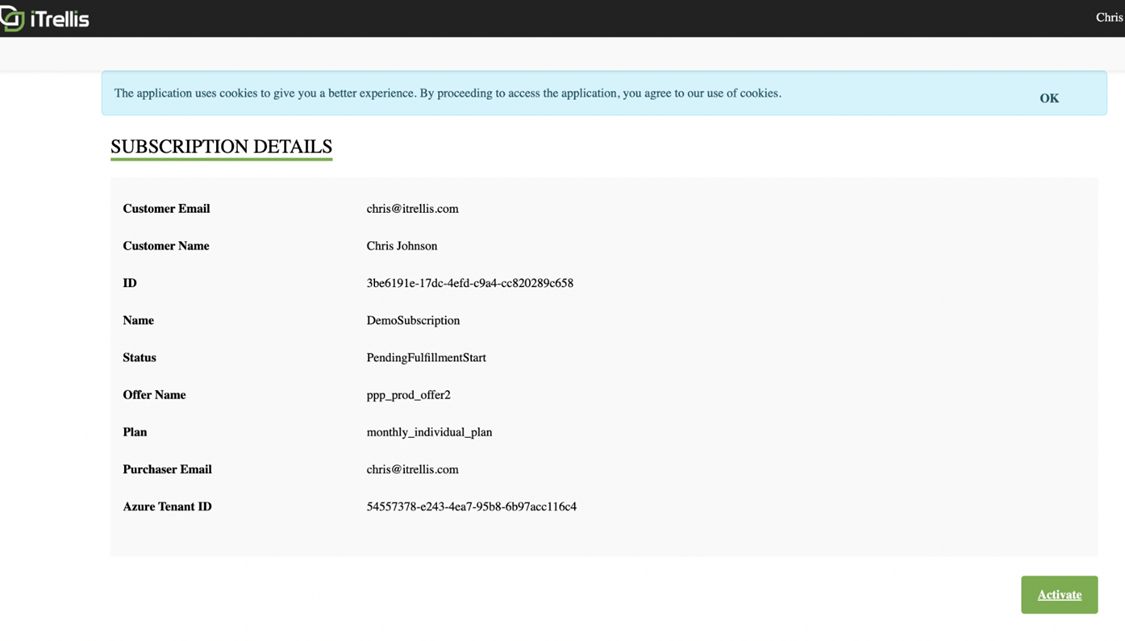
You will be redirected to a page showing your subscription information.
Click Activate.
On the next screen click Go to Subscription List.
Step 6 - Retrieve Subscription Key
You will be taken to a page displaying your subscription key.

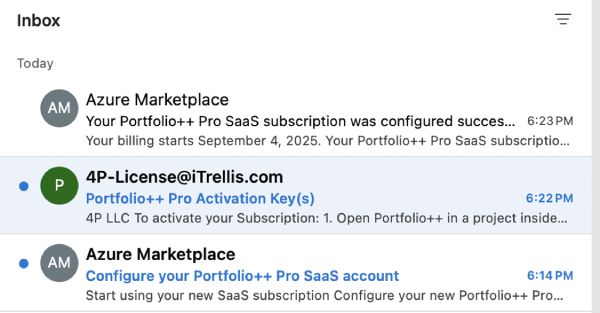
Step 7 - Confirmation Emails
You will receive:
- Two emails from Microsoft Azure confirming your subscription.
- One email from 4P LLC (Portfolio++) containing your subscription key and instructions.
The subscription key is required to unlock Portfolio++ Pro features.
- Individual license - activates Pro features for the user who redeems the key.
- Organization license - activates Pro features for all users in the organization where the key is redeemed.
Step 8 - Open the Upgrade Menu
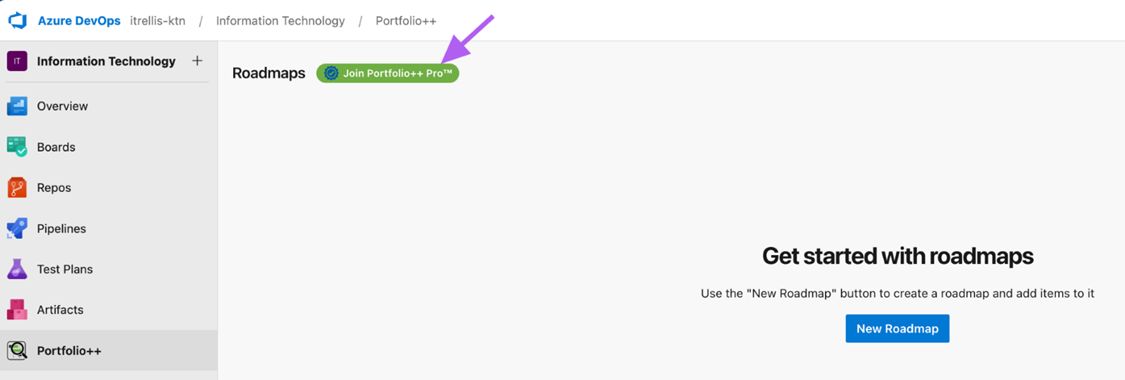
In Portfolio++, click Join Portfolio++ Pro.
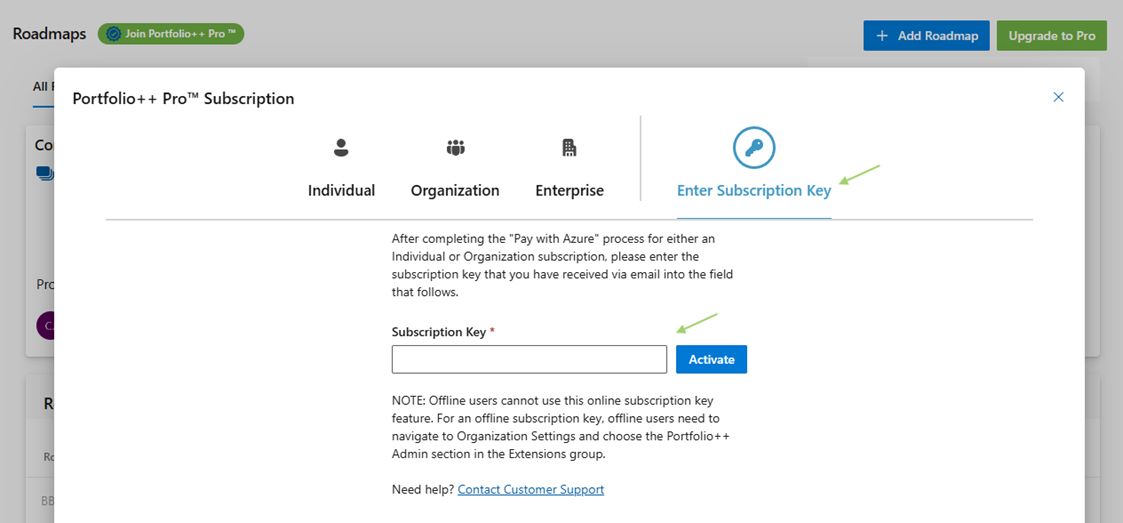
Step 9 - Enter Subscription Key
Select Enter Subscription Key.
Paste your subscription key, then click Activate.
Once activated, Portfolio++ Pro features will be enabled.