Display Options
Overview
Display Options allow you to control how Work Items are presented on the Roadmap. By customizing visibility, labels, and visual indicators, teams can reduce noise, highlight what matters most, and improve clarity when reviewing plans, progress, and dependencies.
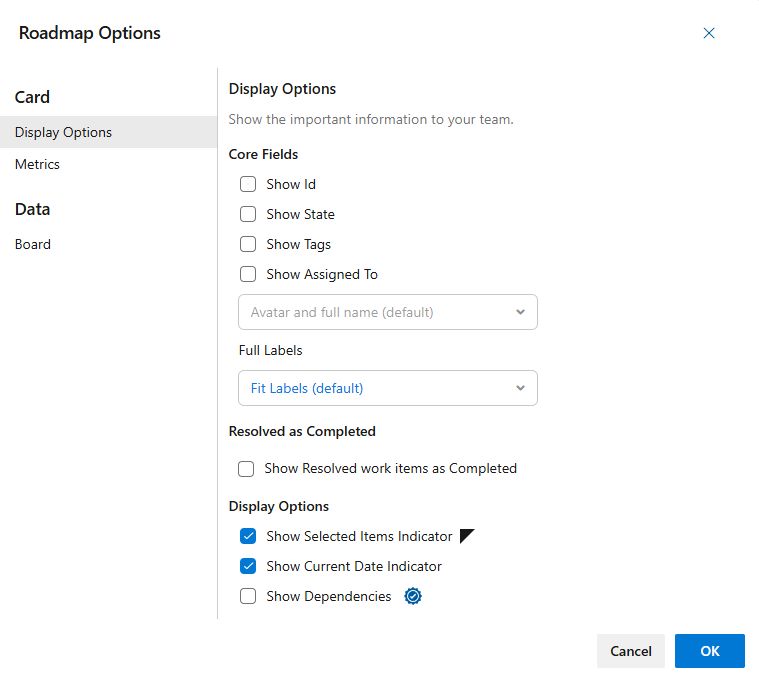
Core Fields
Control which Work Item fields and labels are visible on the Roadmap.
- Show ID: Display the Work Item ID on the card.
- Show State: Display the current State of the Work Item.
- Show Tags: Display any Tags associated with the Work Item.
- Show Assigned To: Choose how the assigned user is displayed
- Avatar and full name (default): Shows both avatar and full name.
- Name only: Shows only the full name.
- Avatar only: Shows only the avatar.
- Full Labels: Control how Work Item titles are displayed.
- Fit Labels (default): Labels fit within the card. Hover to see the full labels.
- Full Labels: Labels extend beyond the card so the full text is always visible.
- Full Labels with Background Color: Same as Full Labels, but with a white background for improved readability
Show Resolved work items as Completed
Consider Work Items with State or StateCategory of Resolved as Completed work items.
- Default: Disabled
- Applies to: Roadmap and Capacity view
Display Options
Display Options
- Show Selected Items Indicator: Highlight selected Work Items with a black triangle in the upper left corner of the card.
- Show Teams Iteration Path: Available only on Team based Roadmaps. Displays each Team’s Iterations directly on the timeline as blue cards, showing the iteration name and duration.
- Show Dependencies (Pro Feature): Visualize relationships between Work Items. Dependencies appear as number to the left or right of a card. Click the number to see more detailed information.
- Watch a short video on Dependencies for a step-by-step walkthrough.